Do you think you need a computer or a laptop to create a professional CV? Or are you planning to go to a local photocopy shop and pay someone Rs. 500 to type out a generic CV for you?
Table of Contents
Stop right there.
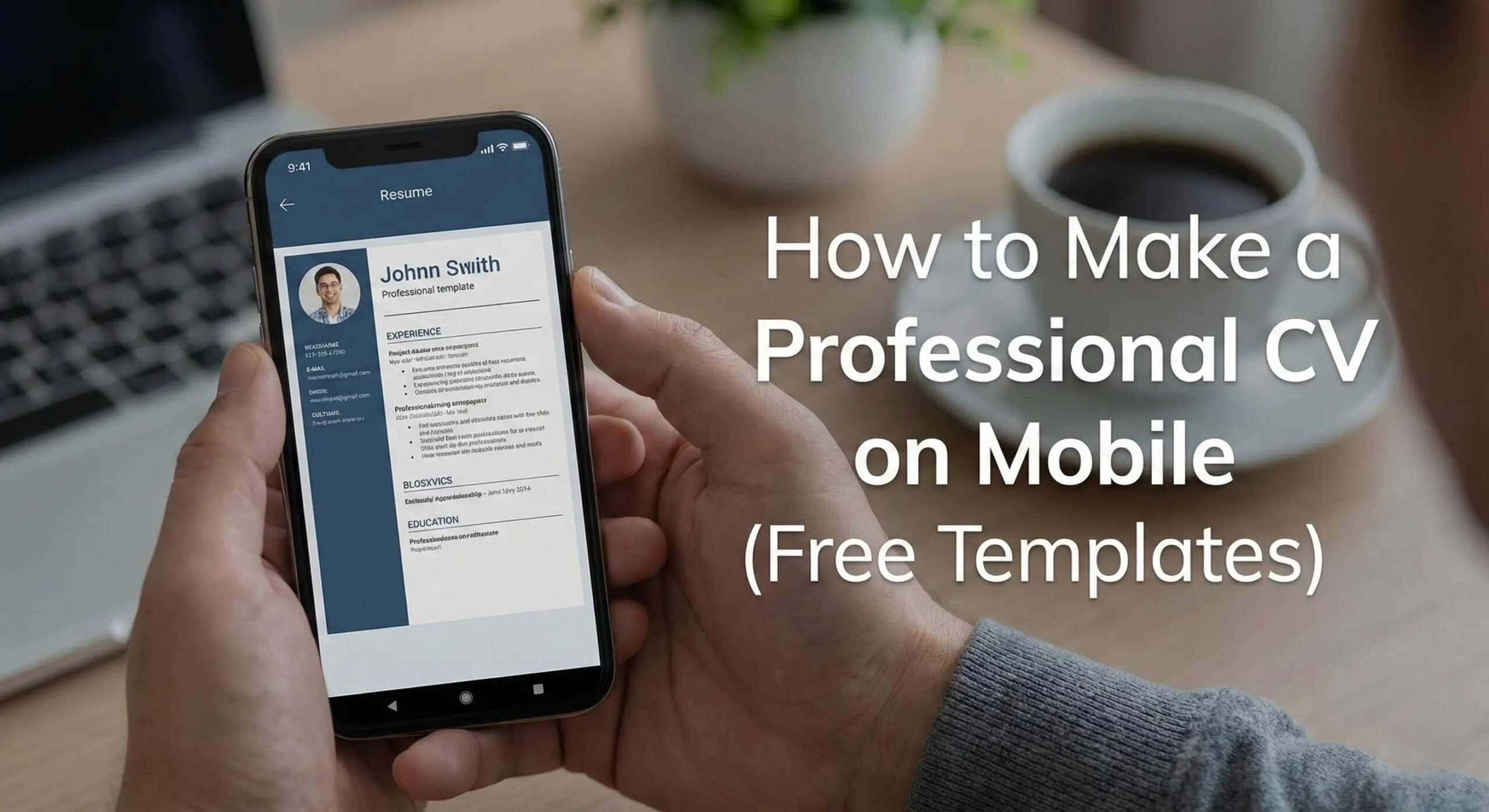
In 2026, your smartphone is powerful enough to build a world-class resume. In fact, most modern career experts recommend making your own CV so you can edit it anytime, anywhere. You don’t need expensive software; you just need the right free apps and a bit of guidance.
In this guide, I will show you exactly how to design a CV on your mobile that looks like it was made by a professional designer. Plus, I’ll share which templates actually get you hired. For more career hacks and interview tips, keep visiting Career Talks.
Why You Should Never Pay Someone to Make Your CV
When you pay a “computer shop wala” to make your CV, they usually copy-paste your name into an old, outdated format.
- The Problem: These CVs often get rejected by modern hiring systems (ATS).
- The Solution: When you make it yourself on mobile, you control the quality, the keywords, and the design.
Top 3 Free Apps for Making a CV on Mobile
Not all apps are created equal. Avoid random “Resume Builder” apps full of ads. Here are the top 3 professional tools used globally:
1. Canva (Best for Design)
Canva is the king of mobile design. It has thousands of free resume templates.
- Best For: Creative jobs, marketing, internships, and students who want a visually appealing CV.
- Cost: Free (with paid options, but free is enough).
2. Google Docs (Best for ATS Compatibility)
If you are applying to big companies (MNCs) or banks, simple is better. Google Docs offers clean, text-based templates that are easy for computers to read.
- Best For: Corporate jobs, banking, government jobs.
- Cost: 100% Free.
3. LinkedIn App (Best for Quick Exports)
Did you know if your LinkedIn profile is updated, you can export it as a resume PDF instantly?
- Best For: Emergencies when you need a CV in 1 minute.
Step-by-Step Guide: Making Your CV on Canva App
Since Canva is the most popular choice for mobile users, let’s walk through the process.
Step 1: Download & Search
Download the Canva app. In the search bar, type “Professional Resume” (Do not just type “Resume”, or you will get fancy, colorful ones that HR hates).
Step 2: Choose the Right Template (Crucial!)
Avoid: Templates with dark backgrounds, photos taking up half the page, or too many graphics.
Select: A template with a white background, clear black text, and a clean structure.
Step 3: Edit the Content
Tap on the text to edit. Zoom in with two fingers to see clearly.
- Header: Your Name (Bold), Phone Number, Email, and LinkedIn Link. (Do not put your full home address; just City, Country is enough).
- Summary: 2-3 lines about who you are and what you offer.
- Experience: List your jobs in reverse chronological order (newest first).
- Education: Degree name, University, and Year.
Step 4: The “Save” Hack
Once you are done, click the Share/Export button at the top right.
- IMPORTANT: Always save as “PDF Standard”. Never save as an Image (JPG/PNG). HR software cannot read text from an image.
Comparison: Canva vs. Google Docs for CVs
| Feature | Canva App | Google Docs App |
| Visual Appeal | Very High (Beautiful designs) | Low (Simple text) |
| Ease of Use | Drag and drop elements easily. | Typing based, simple formatting. |
| ATS Friendly | Medium (Some designs confuse bots). | High (Best for scanning bots). |
| Customization | Full creative control. | Limited to margins and fonts. |
| Verdict | Best for Students/Creative Fields. | Best for Professional/Corporate Jobs. |
5 Golden Rules for Mobile CV Making
- Keep it to 1 Page: Unless you have 10+ years of experience, your CV should not exceed one page. Mobile screens make it easy to accidentally make long documents—check the page count!
- No Selfies: Unless you are a model or actor, do not put your photo on your CV. In Pakistan, it is common, but modern international standards advise against it to avoid bias. If you must, use a professional passport-sized photo, not a selfie.
- Use Bullet Points: Do not write long paragraphs. HR managers scan a CV in 6 seconds.
- Bad: “I worked as a manager and I handled the team and we did sales.”
- Good: “• Managed a team of 10 sales executives.”
- Check Your Email Address: If your email is
coolboy_ali@gmail.com, change it. Create a new one likeali.khan.professional@gmail.com. - Proofread: Mobile auto-correct can ruin your CV. It might change “Public Relations” to “Pubic Relations” (Yes, this happens!). Read it twice.
Conclusion
Creating a professional CV on your mobile is not only free, but it is also a smart skill to learn. It gives you the freedom to apply for a job the moment you see the ad, without running home to a laptop.
Remember, the tool (mobile or laptop) doesn’t matter; the content matters. Keep it clean, keep it honest, and save it as a PDF.
Ready to take your career to the next level? Check out more step-by-step guides on Career Talks.
Would you like me to provide a “Copy-Paste” text template for the ‘Summary’ section of your CV based on your specific field?
Frequently Asked Questions (FAQs)
1. Can I make a CV on my phone for free?
Yes! Apps like Canva and Google Docs are completely free to use and allow you to download high-quality PDF resumes without watermarks.
2. Which format is best for CV: PDF or Word?
Always use PDF. A PDF locks the formatting so your CV looks the same on the HR manager’s computer as it does on your phone. Word files can get messy if software versions differ.
3. Should I include a photo on my CV?
For most corporate jobs in 2026 (Software, Banks, MNCs), No. Photos take up space and are not ATS-friendly. However, for acting, modeling, or some local Pakistani companies, a photo might still be requested.
4. What is the Intelligent CV app?
“Intelligent CV” is a popular Android app. It is good for very basic users, but the designs often look a bit outdated compared to Canva. It is a safe backup option if you find Canva too difficult.
5. How do I send my CV from my phone?
Once you save the PDF, go to your email app (Gmail), compose a new email, click the “Attach” (paperclip) icon, and select your CV file from your phone’s storage. Never send the CV as a WhatsApp image!